
Overview
The Overtime (OT) Analytics widget enables employees to monitor their overtime submissions and utilization. It provides real-time information on approved, pending, and rejected OT forms, as well as detailed OT hours utilization for the applicable cut-off period.
Enabling OT Analytics on the Dashboard
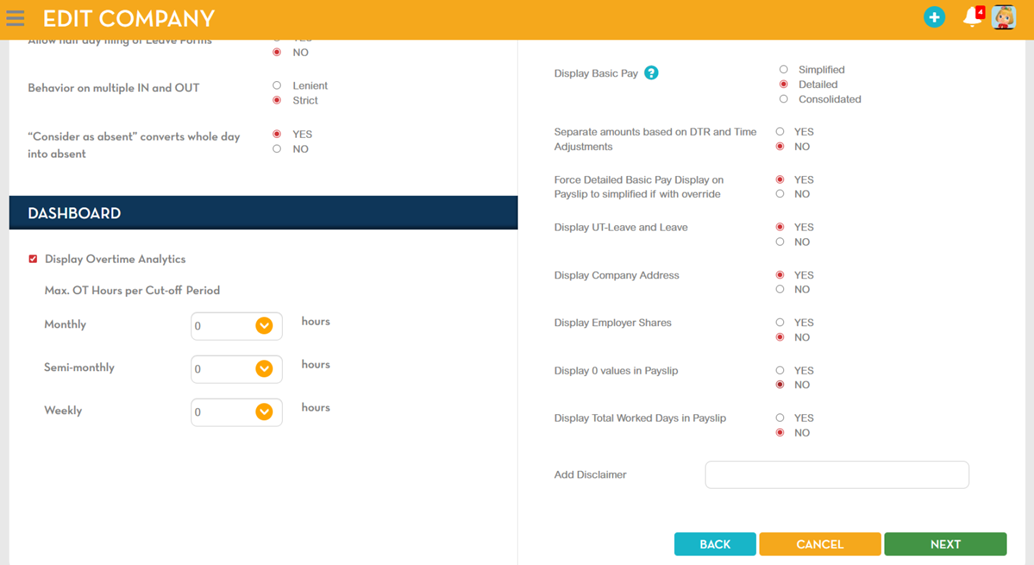
- Navigate to Company Information > Company Settings
- Enable the option Display Overtime Analytics.
- Select the Max OT hours per Cut-off Period
Once enabled, the OT Analytics widget will appear on the right section of the Employee Dashboard.
OT Analytics Widget Details
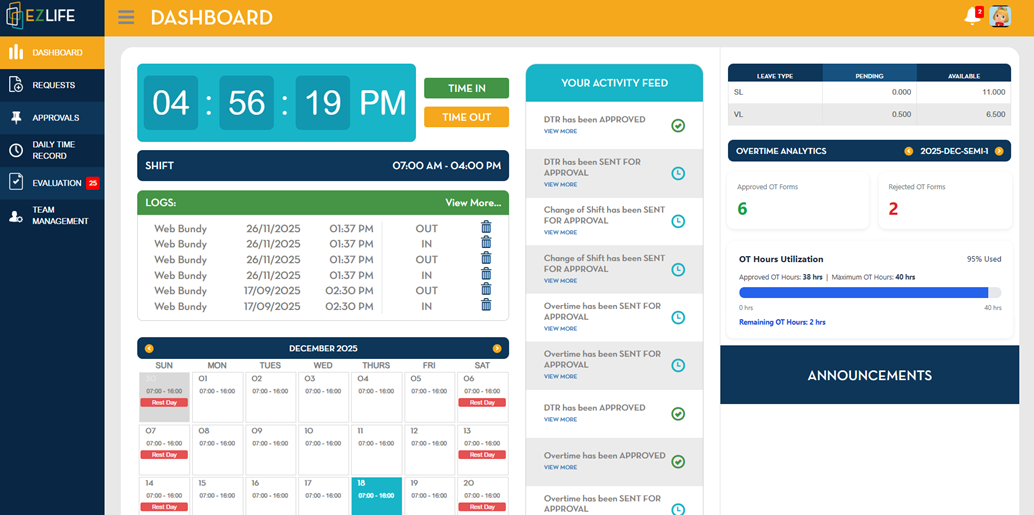
Default Display
- The widget displays data for the current month by default.
OT Forms Summary
- Approved OT Forms: Total number of OT forms with status = Approved (End Point ticked)
- Rejected OT Forms: Total number of OT forms with status = Rejected/Withdrawn (Bad Status ticked).
OT Hours Utilization
- Approved OT Hours: Sum of approved OT hours for the selected month
- Maximum OT Hours: Configured system limit (based on the setup)
- Remaining OT Hours - Formula:

Progress Bar
Fill Percentage:

If the total OT hours exceed the maximum OT hours (>100%), the progress bar color changes to red.
OT Form Submission Warning
When submitting an OT form:
- The system evaluates the total OT hours per month based on Approved and Sent for Approval OT forms.
- If submission exceeds the Maximum OT Hours:
- A warning message is displayed after the employee clicks Submit:
Warning Message:
Warning: You have exceeded the maximum allowed overtime hours for this month.
Do you want to proceed? (Yes / No)
- Employees may proceed with submission even if total OT hours exceed the configured maximum.
Notes
- The OT Analytics widget is visible only if enabled in the Company Settings
- OT hours calculation and cut-off period are based on the Date Needed field in the OT form.