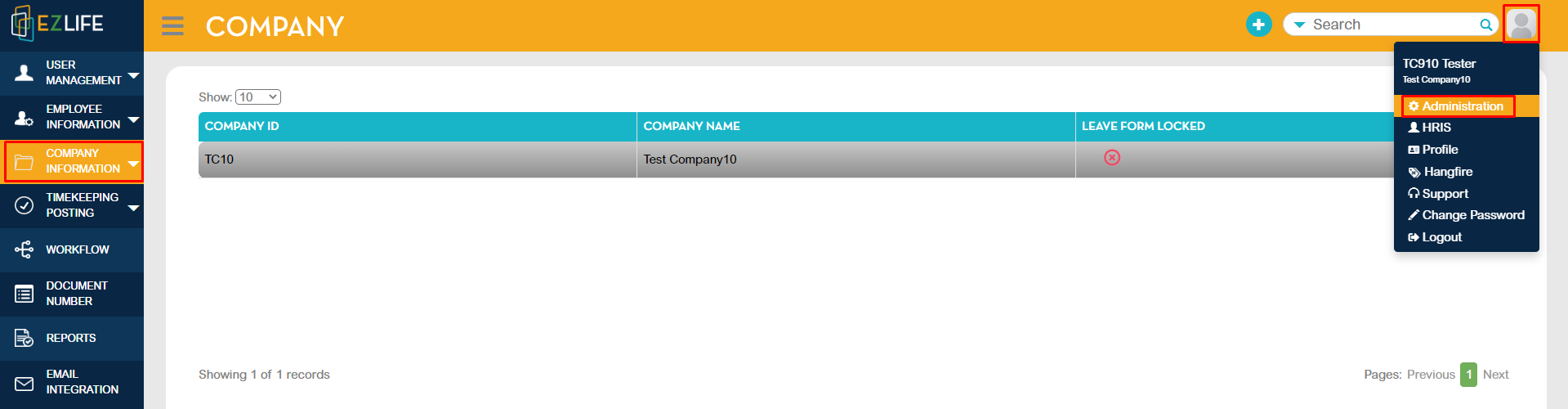
To change the PHILHEALTH Table to 2024 version, click the profile icon in the upper-right corner of the page, go to Administration - Company Information - select company.
Click the Edit icon.
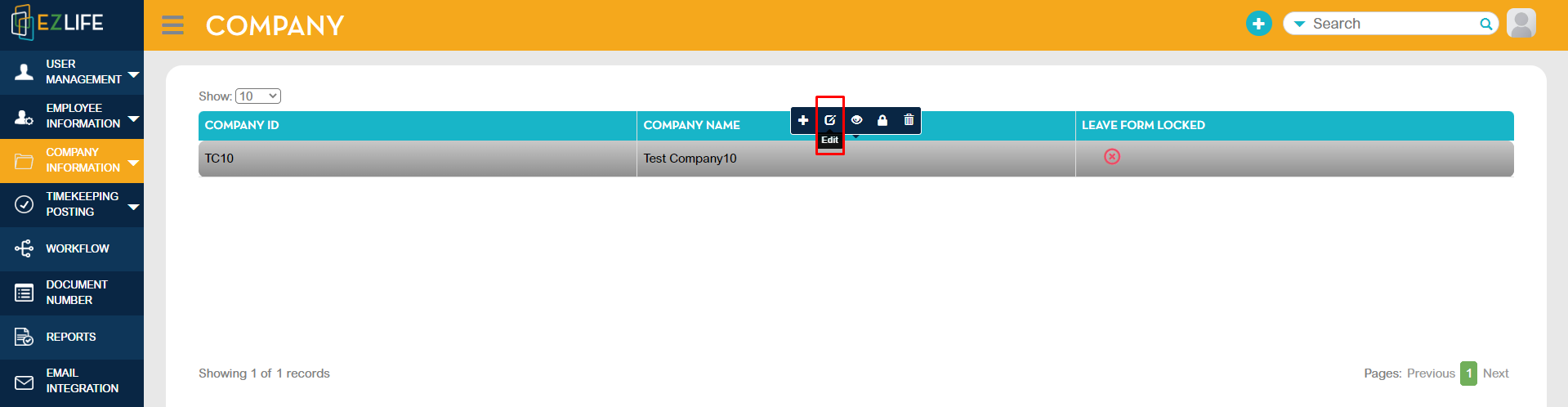
Go to 3rd page - Payroll Settings - you will see the PHILHEALTH Table after the SSS Table.
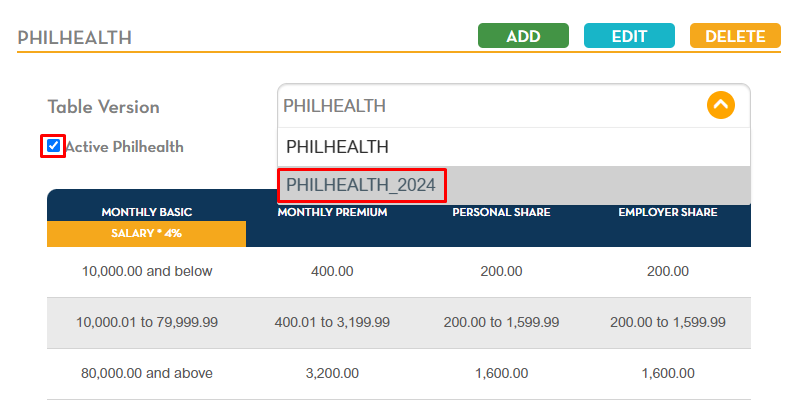
Activate the new PHILHEALTH Table by choosing the newly added table version in the options (PHILHEALTH_2024) then tick the Active Philhealth box.
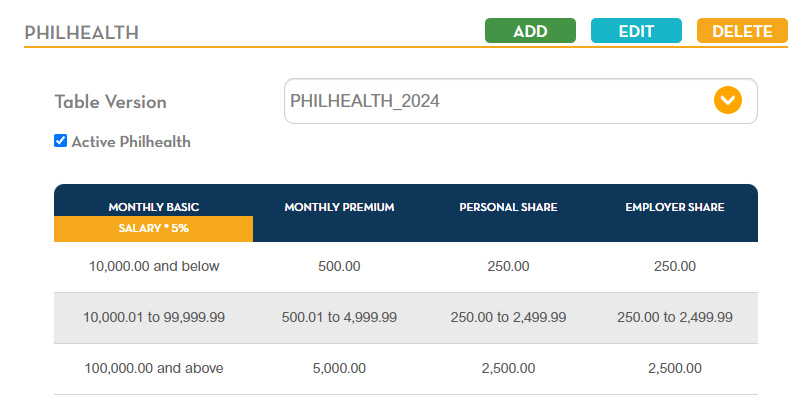
The PHILHEALTH Table must show like the image below to work accurately.
 Once the changes are made, click SAVE below.

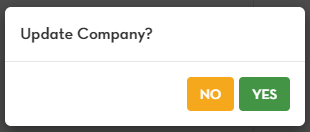
A pop-up message will show to Update Company, click YES.
Another pop-up message will show that the Company was successfully updated. Click OK.