
To enhance account security, you can enable Multi-Factor Authentication (MFA) for a specific user. Follow the steps below to require MFA and guide users through the setup process.
Enabling MFA for a User Account
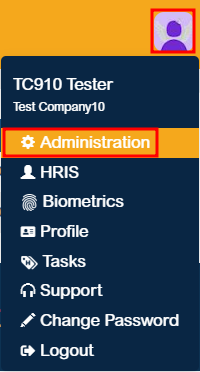
1. Login to the System and click the Profile icon at the upper-right corner of the page.
2. Navigate to Administration > User Management.

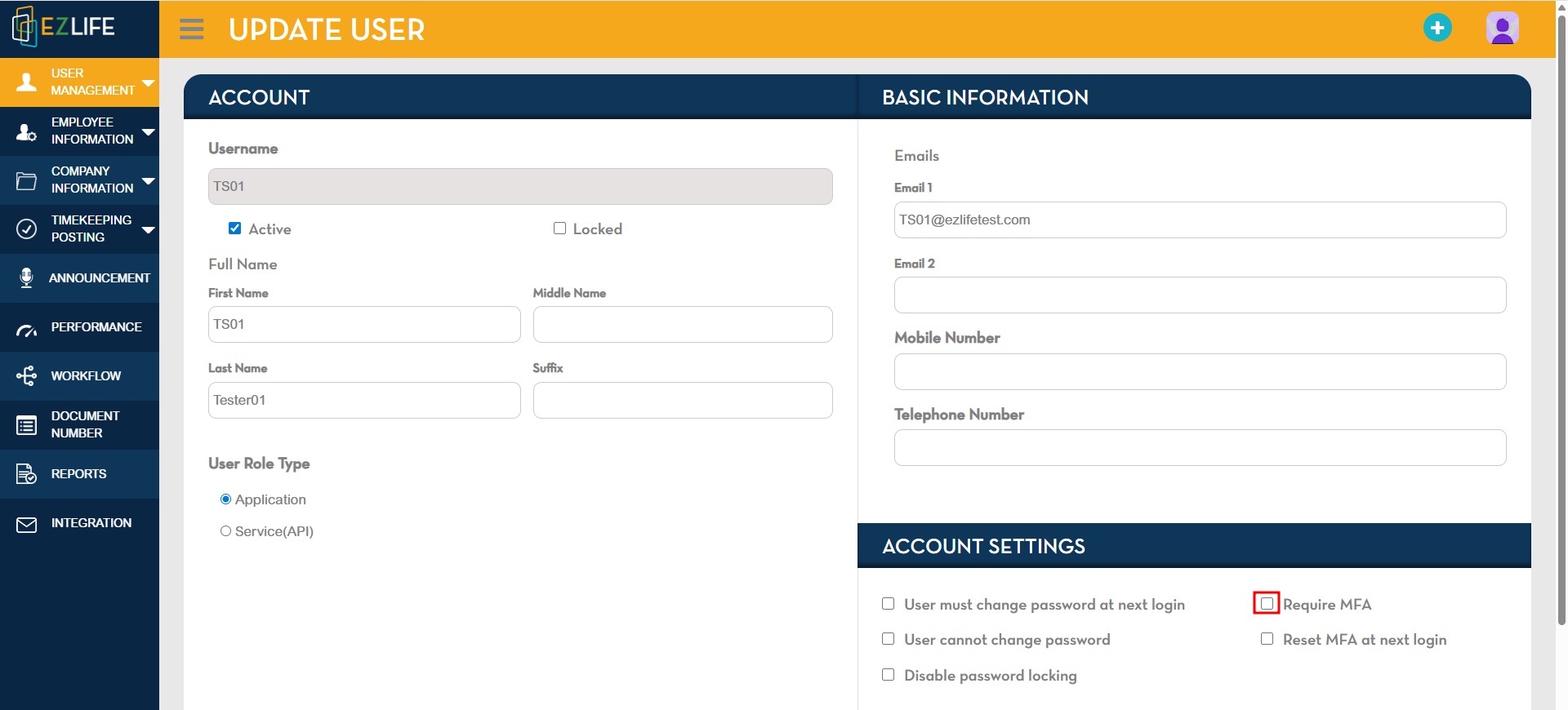
3. Locate the employee you want to require MFA for and click the Edit (✎) icon beside their name.

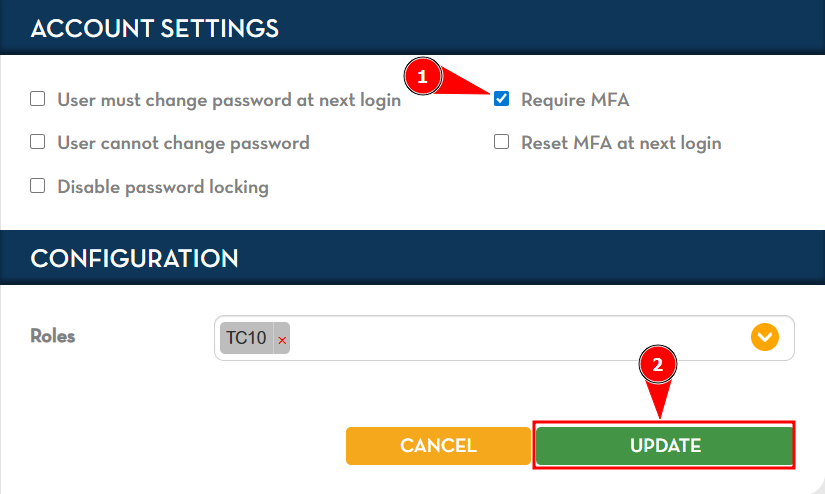
4. In the Account Settings tab, tick the checkbox for Require MFA.
5. Click Update to save the changes.
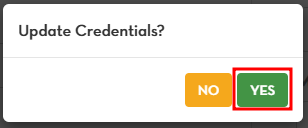
6. A confirmation pop-up will appear – click Yes to proceed.
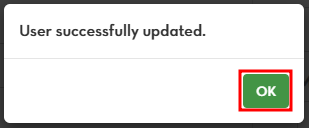
7. A second pop-up will confirm that the user was successfully updated – click OK.
MFA Setup: User Instructions
After MFA has been enabled for the user, follow the steps below to complete the setup:
1. Download and install an Authenticator App (e.g., Google Authenticator or Microsoft Authenticator) from your device's app store.
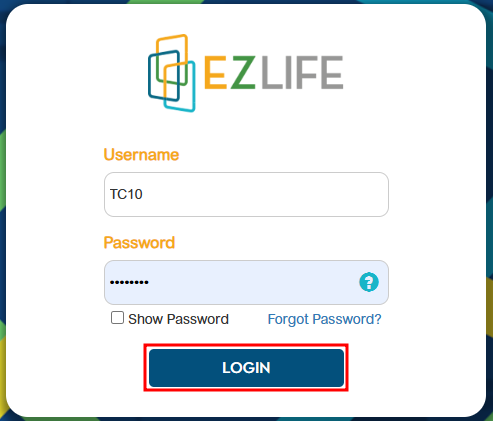
2. Go to the login page and enter your username and password, then click Login.
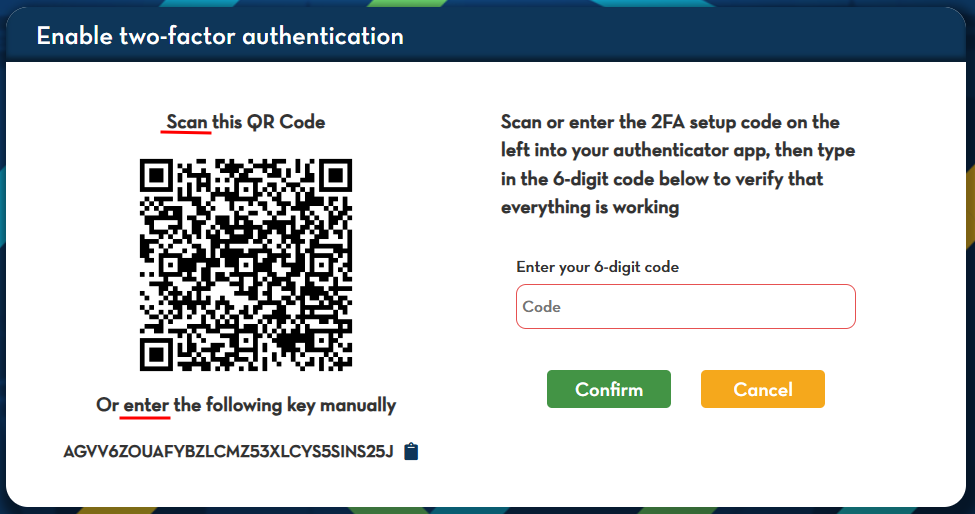
3. The system will prompt you to enable Two-Factor Authentication.
4. Choose either of the following options in the Authenticator Page:
- Scan the QR code displayed on the screen, or
- Manually enter the key provided.
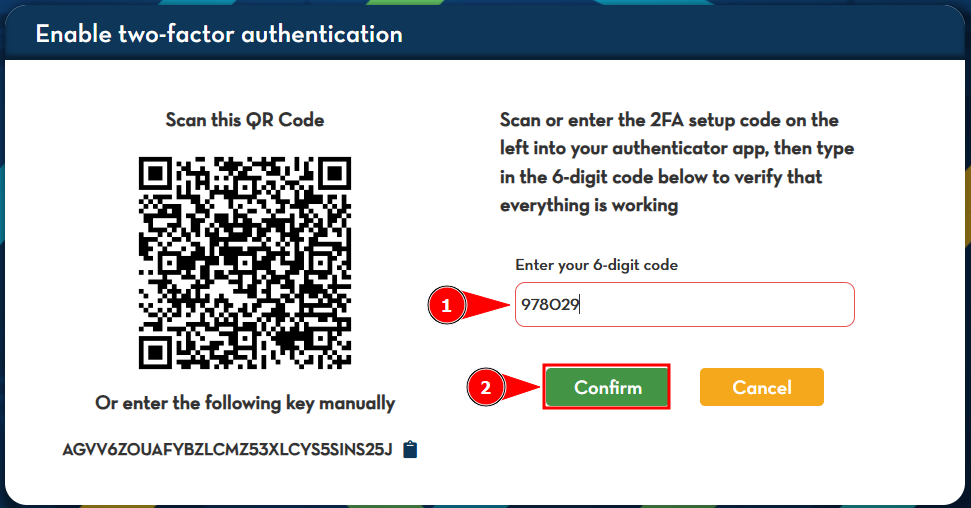
5. The app will generate a 6-digit code. Enter the code in the system and click Confirm.
6. You will be successfully logged in to your account.
Note:
- MFA adds an extra layer of security to your account by requiring a code from your device.
- Users must complete the MFA setup process during their first login after MFA is enabled.